In October, a remodeling client of ours opened Google Analytics and found a suburb at the top of their city list: 165 visits in four weeks. They were ready to build a page just for that town. Before they did, we pulled up their job records, 180 requests and 64 jobs, and looked for that suburb. It wasn't there once. Some of those visits included us.
Google Analytics counted us on our own site too. We had blocked our office by its internet address, the one Google's setup page showed us. Seven weeks later, the first part of that address was different, and our own visits were back in the report. Nothing had warned us.
Does Google Analytics count your own visits?
Yes. Google Analytics 4 (GA4) can't tell you from a customer. Every time you open your own website, it counts a visit, a page view, and a city.
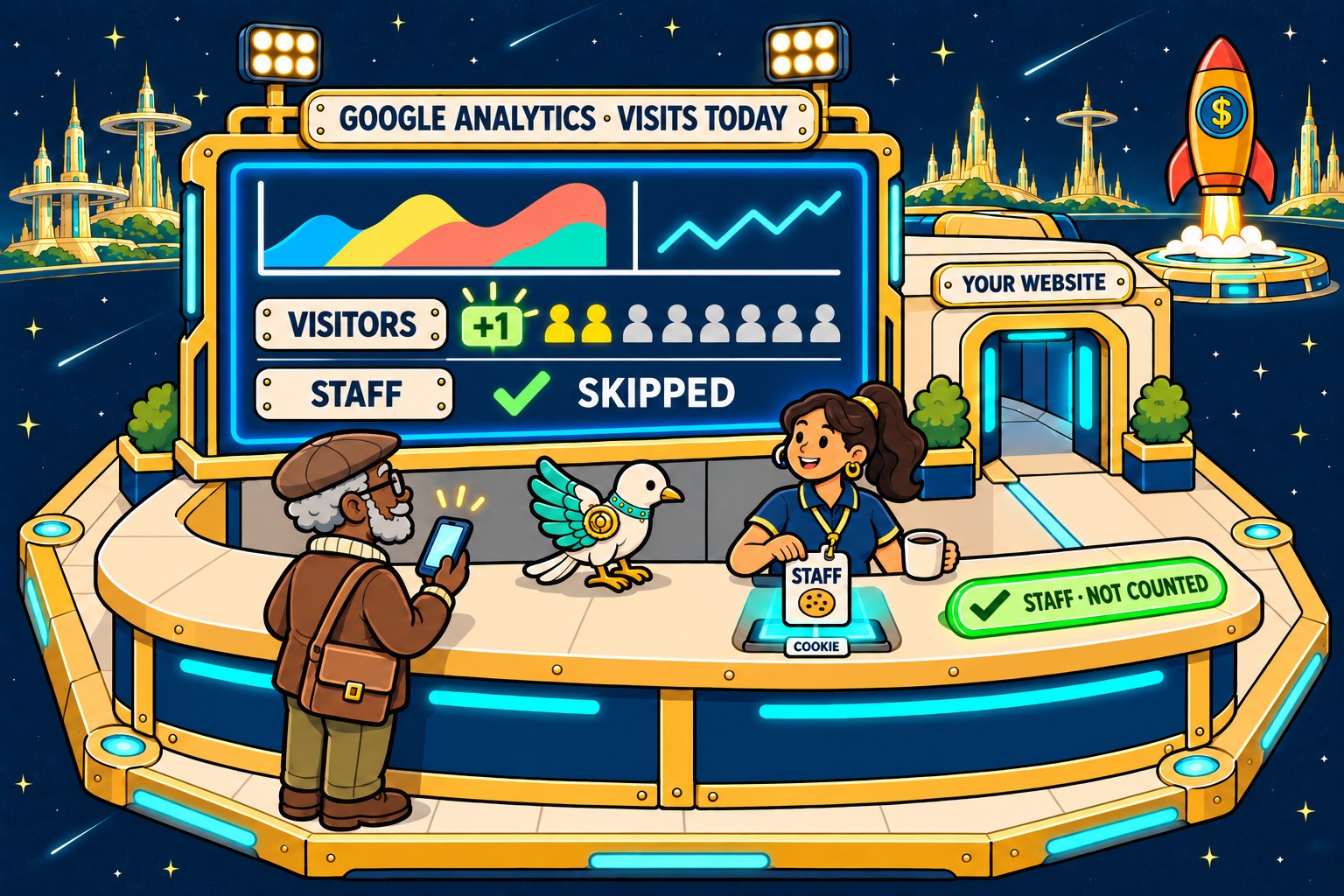
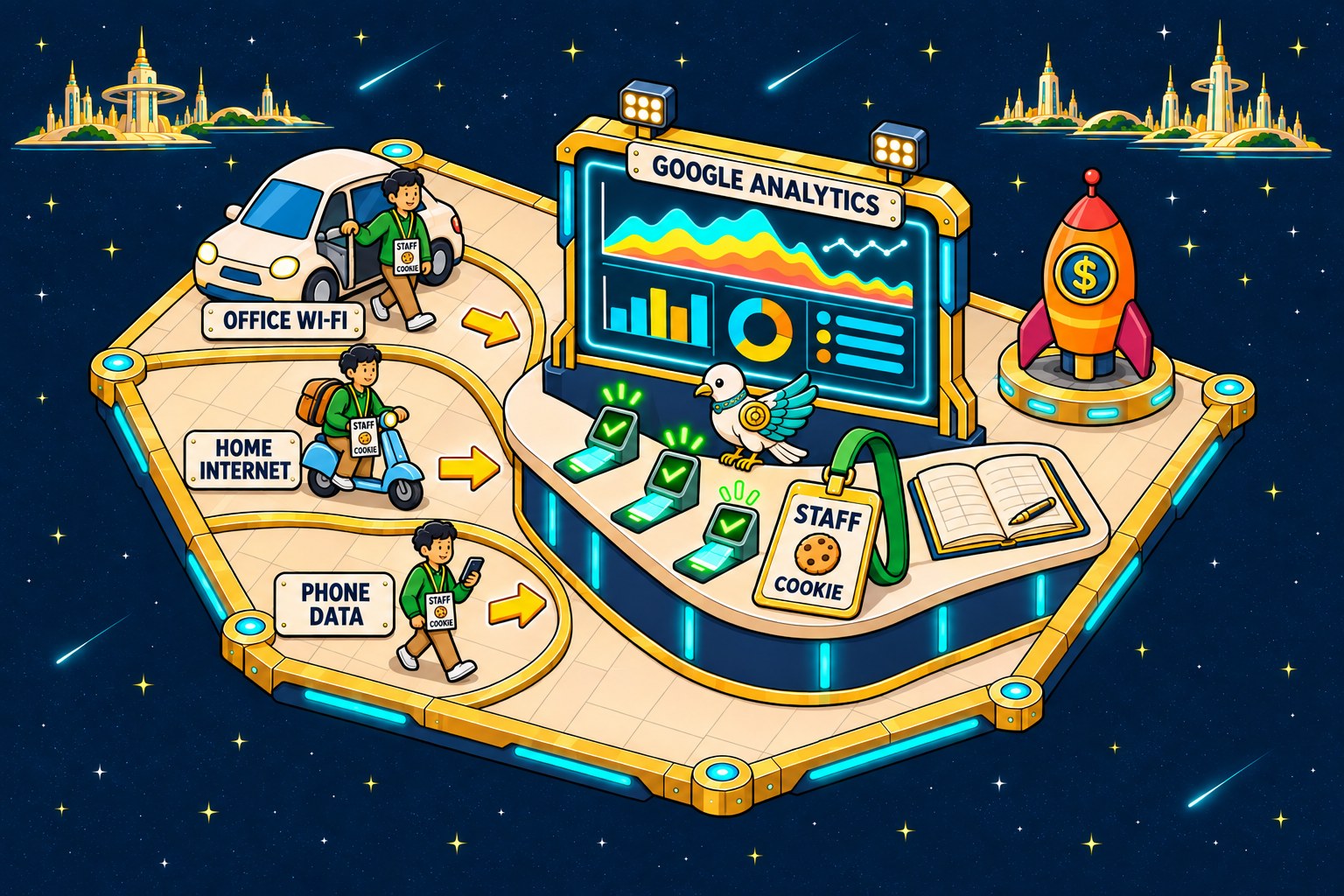
Picture a front desk that counts everyone who walks in. Your staff walk in all day, so a lot of the count is staff. The desk can't tell your staff from your customers unless your staff wear something it can see.
For a small business, this matters a lot. If you get 300 visits a month and your team makes 100 of them, a third of your report is you. Your "top city" may just be where you live.
Your filter says "(not set)". Is it working?
You can't tell from the report. That's the trap nobody warns you about.
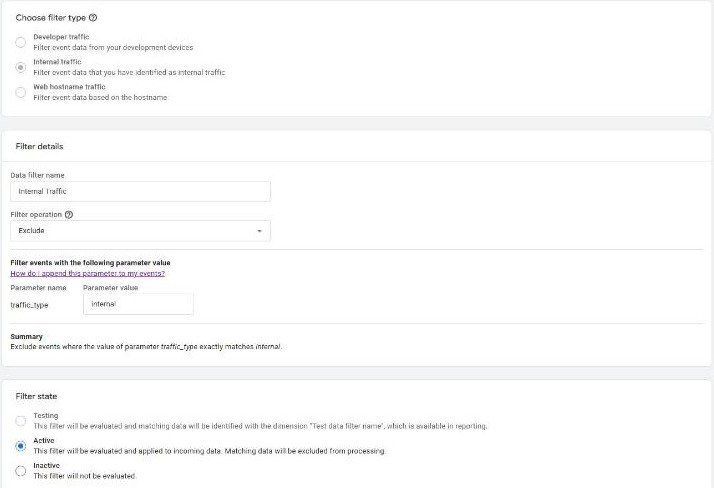
GA4 has a setting that leaves out "internal traffic," meaning visits from you and your team. It has three modes (Google):
- Testing: GA4 still counts your visits, but it marks each one with the filter's name.
- Active: GA4 throws your visits away for good.
- Inactive: the filter does nothing.
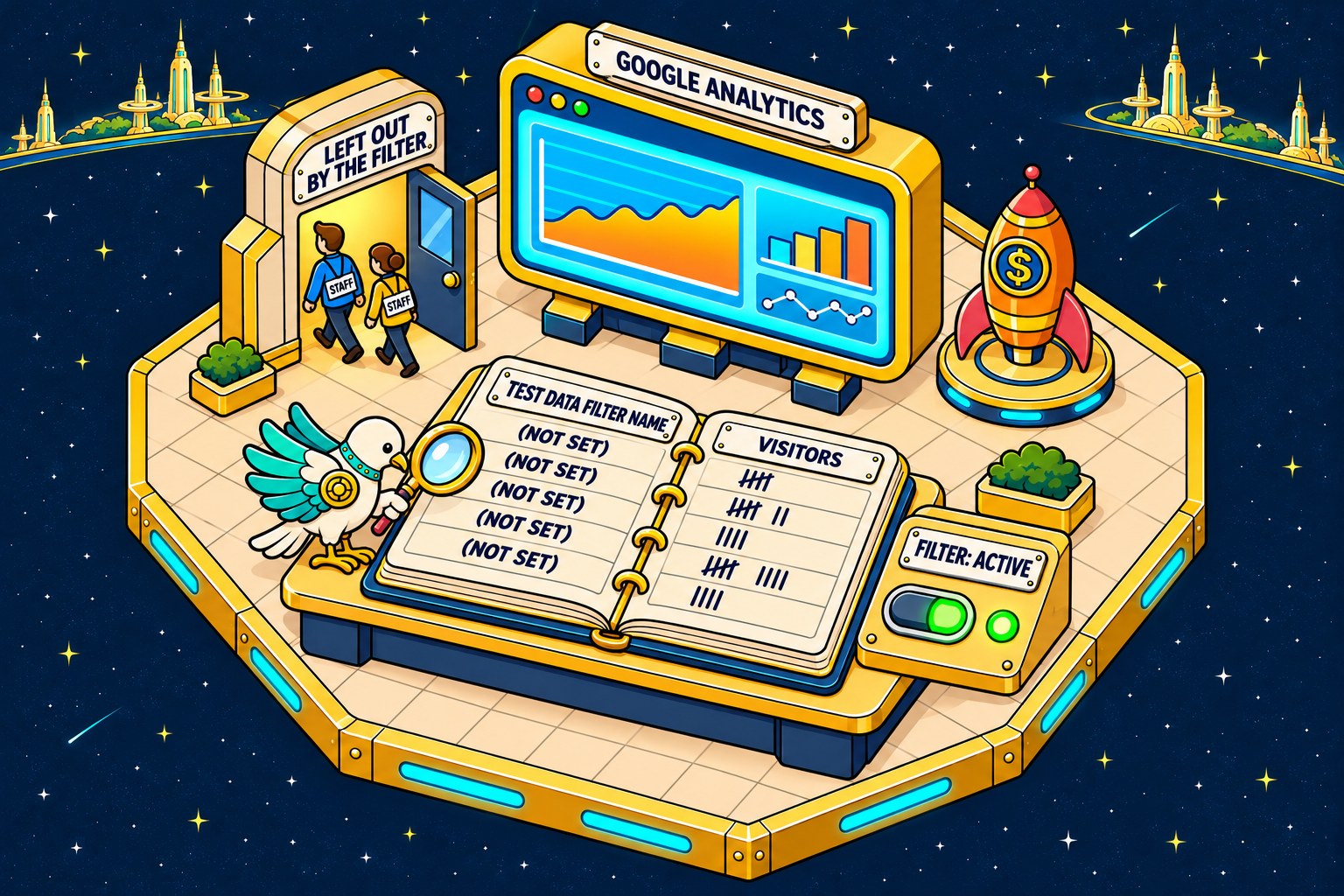
Here is the problem. Once a filter is Active, the visits it catches are gone before any report is built. So nothing is left to carry the mark. Our client's report showed "(not set)" on 23 of 23 rows over 30 days. That looks like a broken filter. It was a working one. A filter that catches you and a filter that catches nobody look the same in the report.
So the report can't prove it. You have to check the visit itself, which we cover below.
Why does the internet address rule stop working?
Because the address Google sees isn't fixed, and it may not be the one you typed.
GA4's setup page has a button labeled "What's my IP address?" (Google). It shows your address at that moment. Most home internet connections and every phone get a new one from time to time. Google's page doesn't mention that.
Back at the front desk, the address rule is like the desk staff spotting you by the car you drove in. Get a new car, and you count as a customer again.
Here are four ways it fails. Check which one is you:
1. Your address changed. We set a rule for our own office. Google saw a newer kind of address (called IPv6), and the first part of it changed within seven weeks. The rule stopped matching, and nothing told us. We were wrong about this in public, too: until October 28, our own post on measuring your funnel told owners to use the address rule. How to tell: compare the address in your rule with what the button shows today.
2. You checked from your phone. A phone on cell data has a different address than your office. How to tell: do you ever look at your site away from the office Wi-Fi?
3. You checked from home. Your home internet is a different address too. How to tell: does anyone on your team work from home?
4. Your team is more than you. Your web person, your office manager, and your partner each have their own addresses. How to tell: count the people who open your site in a normal week.
The honest no: if you're one person in one office with a fixed address from your internet company, the address rule can work. Ask your provider if your address is "static." If it is, and you only check the site there, you may not need the next step.
How do you give your team a staff pass?
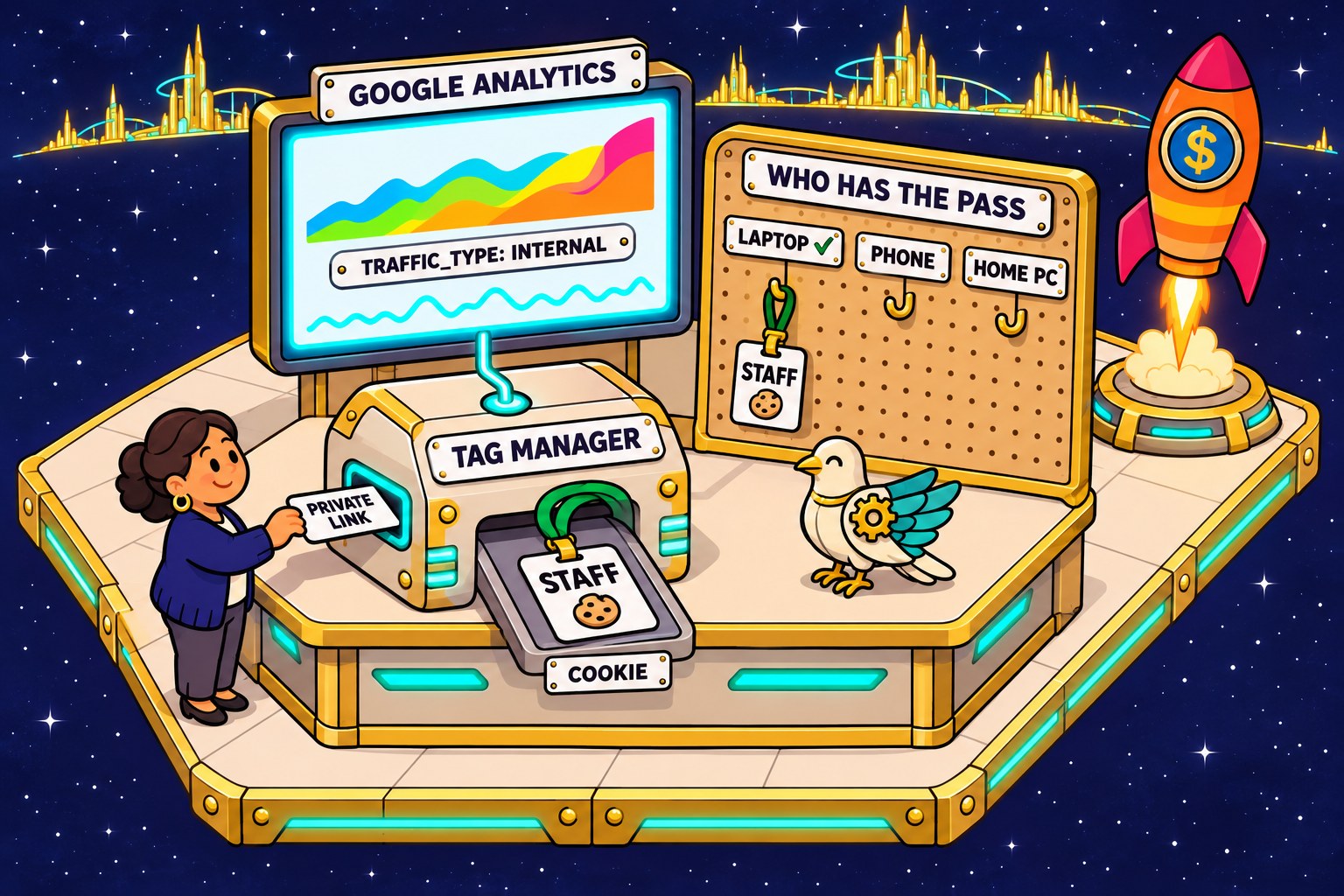
You give each browser a small marker, called a cookie, that says "this is staff." It stays put when your address changes, like a staff pass on a lanyard no matter what car you drove in.
We built ours in our own Tag Manager on November 9, 2026. You need Editor access to GA4 to make the filter (Google).
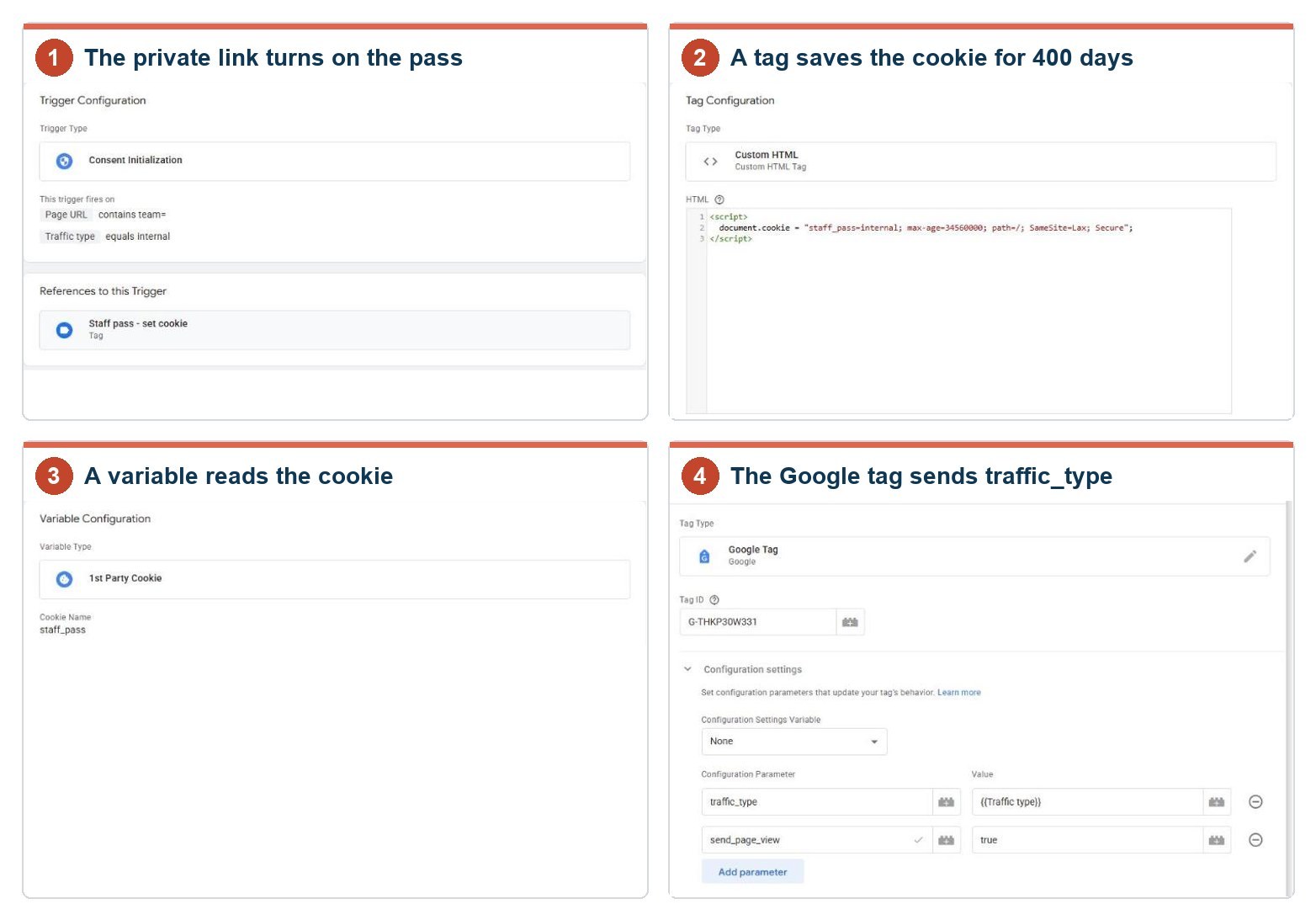
1. Pick a private link. Add a word to the end of your web address, like ?team=yes. Pick one a stranger wouldn't guess. Ours is 11 letters and numbers.
2. Set the cookie. In Tag Manager, make a tag that runs when that word is in the address. It saves a cookie on that browser, set to last 400 days.
3. Read the cookie. Make a variable that reads the cookie. If it's there, the variable returns "internal."
4. Send it to GA4. In your Google tag's settings, add a parameter named traffic_type and set it to that variable.
5. Hand out the pass. Each person on your team opens the private link once, in every browser and on every phone they use. Write down who has it. Our list so far is one line, "one laptop, Chrome, November 9," plus our own test browsers.
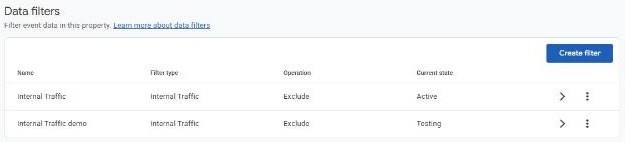
6. Point the filter at it. In GA4, go to Admin > Data collection and modification > Data filters. Make an "Internal traffic" filter that matches the value "internal." Leave it in Testing for now.
If someone clears their cookies, they need the link again. That's the only upkeep. To take the pass off, use a second link that clears the cookie.
How do you prove the filter is catching you?
Check it three ways. The first takes two minutes.
1. Look at the visit itself. Open your site in Chrome on a computer.
1. Right-click a blank spot on your page, not a picture or a link. Choose Inspect, the last line of the menu. A panel opens on the side or bottom of the window. (Shortcut: Ctrl+Shift+I, or Cmd+Option+I on a Mac. Many guides say F12, but on a lot of laptops F12 only works if you hold the Fn key. When we did this on November 9, Inspect was what worked.)
2. Across the top of that panel is a row of words: Elements, Console, Sources, Network. Click Network. If you can't see it, click the >> at the end of the row.
3. Just under that row is a box with a small funnel icon and the word Filter. Click in it and type collect.
4. To the right of the box is a row of small buttons that starts with All. Click All so it's lit. On our first try the JS button was lit instead, and the bottom of the panel said "0 / 111 requests."
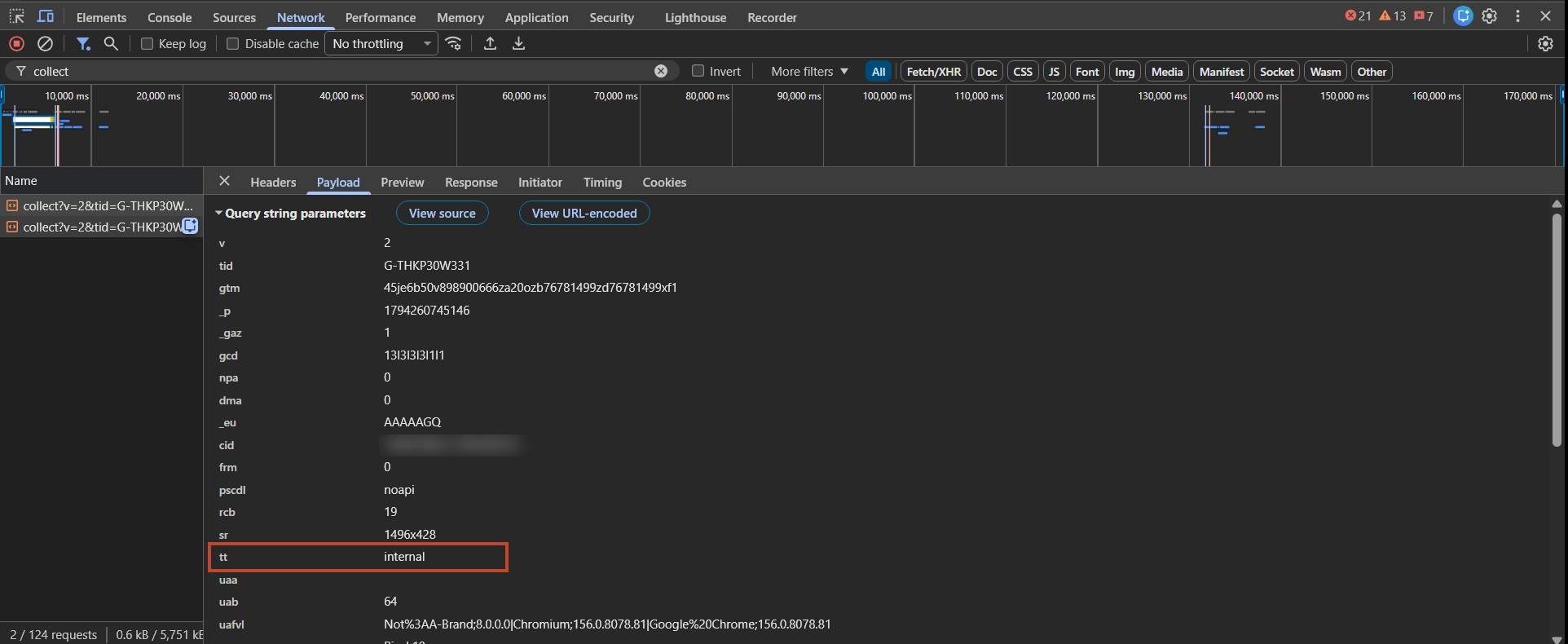
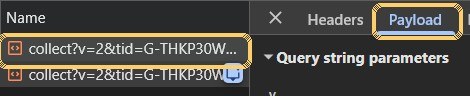
5. Reload the page with Ctrl+R (Cmd+R on a Mac), or the round arrow next to the web address. Lines starting with collect?v=2 appear in the list. Ours showed two, a page_view and a scroll.
6. Click the first collect line. A pane opens with its own tabs: Headers, Payload, Preview. Click Payload.
7. Read down the list to the row named tt. Ours said tt: internal.
If it's there, your browser is wearing the pass. If not, the pass isn't working, and no filter will catch you. Copy from the Payload tab, never the Headers tab. That tab shows your sign-in cookies.
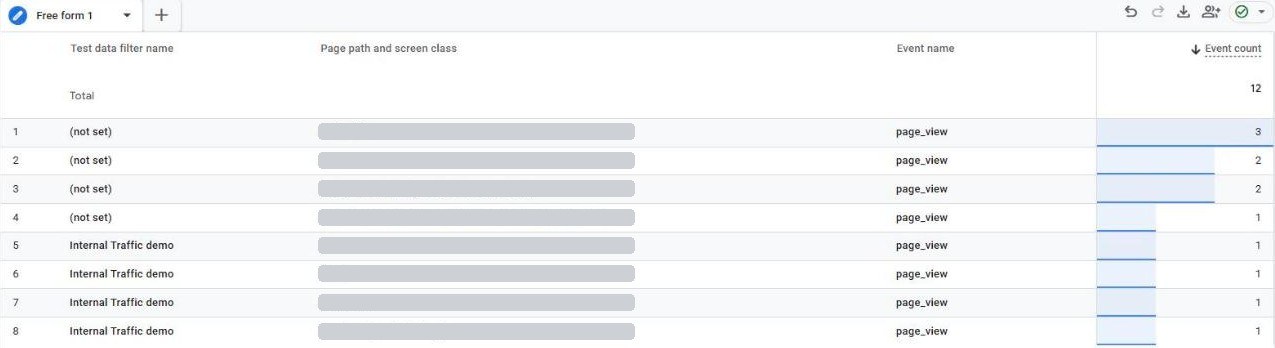
2. Wait, then read the marks. With the filter in Testing, wait 24 to 36 hours. Google says that's how long a filter can take (Google). Then, in GA4, open Explore and start a blank exploration. Add "Test data filter name" and "Event name" as rows and "Event count" as the value. Your own visits should show up under your filter's name.
3. Test a second filter, and keep the first one on. This is the step we haven't seen anyone else show. If your real filter is already Active, don't switch it back to Testing. That would count your staff as customers again while you test. Instead, make a second filter just for the test:
- give your test link its own value, like internal_demo
- make a second filter that matches only that value, and leave it in Testing
- open a few pages with the test link
- after 24 to 36 hours, look for the test filter's name in Explore
We ran this for our client on November 2. A day later, the test filter had marked 4 of their 4 test page views. It marked none of the 8 page views from real visitors on the same pages that day. Two visits with the real staff pass didn't show up at all, which is what an Active filter should do.
A trap we hit: GA4 rejected the filter name when it had parentheses in it. Use letters, numbers, spaces, and underscores. Google allows up to 40 characters (Google).
When the marks look right, switch your real filter to Active, and delete the test filter.
Should you still see yourself in Realtime?
No, not once your filter is Active. Some guides say Realtime still shows you. We tested it twice, on two different pages. Both visits with the staff pass were missing from Realtime. A test visit in the same minutes showed up within about 45 seconds. That's a small test, two visits, so treat it as a quick check, not proof.
A filter only works going forward. Google says data filters "do not affect historical data" (Google). The months before you set it up still include your visits.
It also can't be undone. Once a filter is Active, "the effect on the data is permanent" (Google). What it threw away is gone. That's why the Testing step matters.
If you only want to hide your visits from one report, without losing anything, Google suggests a report filter instead (Google).
The two-minute monthly check
Do this once a month. Do it again any time you change computers, phones, or internet.
1. Open your site and look for tt=internal in the request, as above.
2. Open Realtime and make sure your own visit isn't there.
3. Write the date in your notes, along with anything that changed, like a new team member or a new phone.
A rule that stops matching makes no noise. This check is how you hear it.
Frequently asked questions
How do you exclude yourself from Google Analytics?
Mark your own browsers with a cookie through Google Tag Manager, set traffic_type to "internal," and turn on an internal traffic filter that matches it. Test it before you make it Active.
Why is my internal traffic filter not working?
The two common reasons: your internet address changed, so the address rule no longer matches, or the filter is Active, so the report shows "(not set)" whether it works or not. Check the request for tt=internal.
How long does a GA4 filter take to work?
Google says 24 to 36 hours (Google).
What if I don't have Tag Manager or Editor access?
Ask whoever set up your Google account. The six steps above are the whole job, and they can do them for you.
Can I undo an Active filter?
Google says an Active filter's effect is permanent. The visits it removes are gone for good, and it does nothing to the months before it. Test it first.
Are robots counted as visitors too?
Some are. When we tested our own site with a robot browser, each load showed up as a brand new visitor. That's a different filter problem, and a topic for another post.