Spring Hill KS, 66083

- Home
- > Blog Main Page
- > Analytics & Tracking
- > Google Tag Manager update: what to check first
Google Tag Manager update: what to check first
10.20.2026
DoveWebConsulting
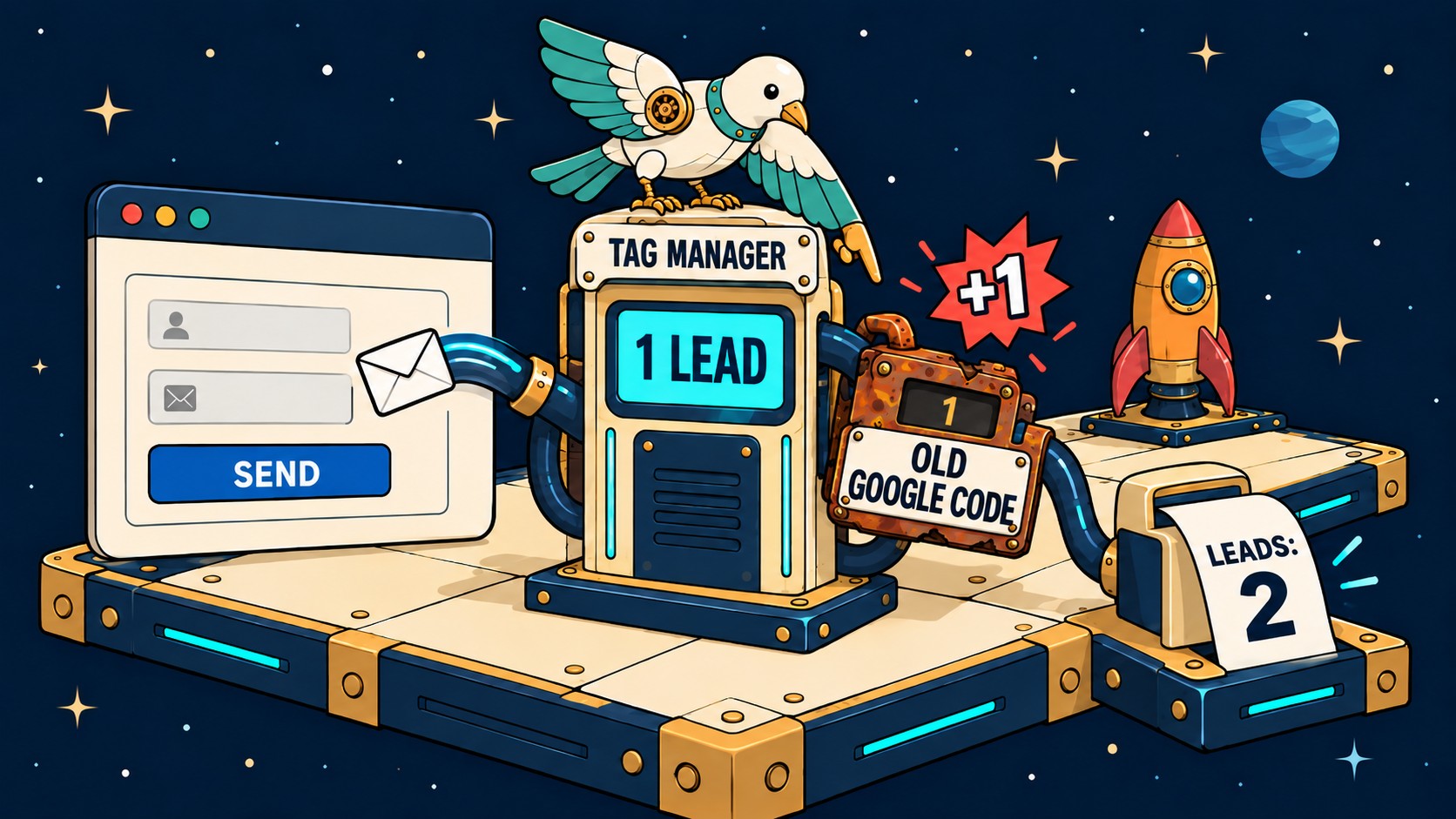
You don't need to download anything. Google changed how Tag Manager works between August and October 2026. One of those changes turned on automatically on October 8. Nobody had to click a button. The checks below are steps you do in your own accounts, and they tell you whether each lead on your website still counts once, not twice. You may not need anyone for this, including us. Eight checks, about twenty minutes.
Say you run a remodeling company in Lee's Summit. You log in to Google Tag Manager for the first time since your web person set it up two years ago. The first thing you see is a banner that says "Optimize your container." Is it safe to click? Are your Google Ads lead numbers even right? Nobody has told you either one. Checks 4 and 8 answer both.
Four words you'll see in Tag Manager:
| Word | What it means |
|---|---|
| Tag | A small tracking code that counts one thing, like a form being sent |
| Container | The box in Tag Manager that holds all your tags, the way a toolbox holds tools |
| Trigger | The rule that tells a tag when to count |
| Event | Anything Tag Manager notices, like a page loading or a form being sent |
What changed in Google Tag Manager?
Your web person installed Google Tag Manager on your site so you can add tracking codes without editing every page. Google says it lets you "configure and deploy tags on your website" from one screen (Google, About Google Tag Manager).
Our retail client's site taught us this one. Nobody touched it all summer, and in August Search Console showed a brand new reason it was blocking pages. Tag Manager changed under everyone the same way on October 8, 2026. Old Google setup code on a page now sends a setup message, and Tag Manager treats it as an event (anything it notices, like a page loading). Google warns "this change may cause those tags to fire" (Google release notes, October 8, 2026). A Meta or TikTok tag set to fire on every custom event can now count a lead nobody sent.
It wasn't the first time. Since April 10, 2025, Google says "containers with Google Ads and Floodlight tags will automatically load a Google tag first" (Google release notes, March 10, 2025).
The rest waits for someone to click. For the optimize step, Google says "no changes will be made automatically" (Google, August 20, 2026). Once you optimize, the container sends data straight to Google. It no longer loads an extra script (Google release notes, October 12, 2026). Google's AI now also suggests a name for each change you publish. That started on September 17 (Google release notes).
Why can one lead count as two?
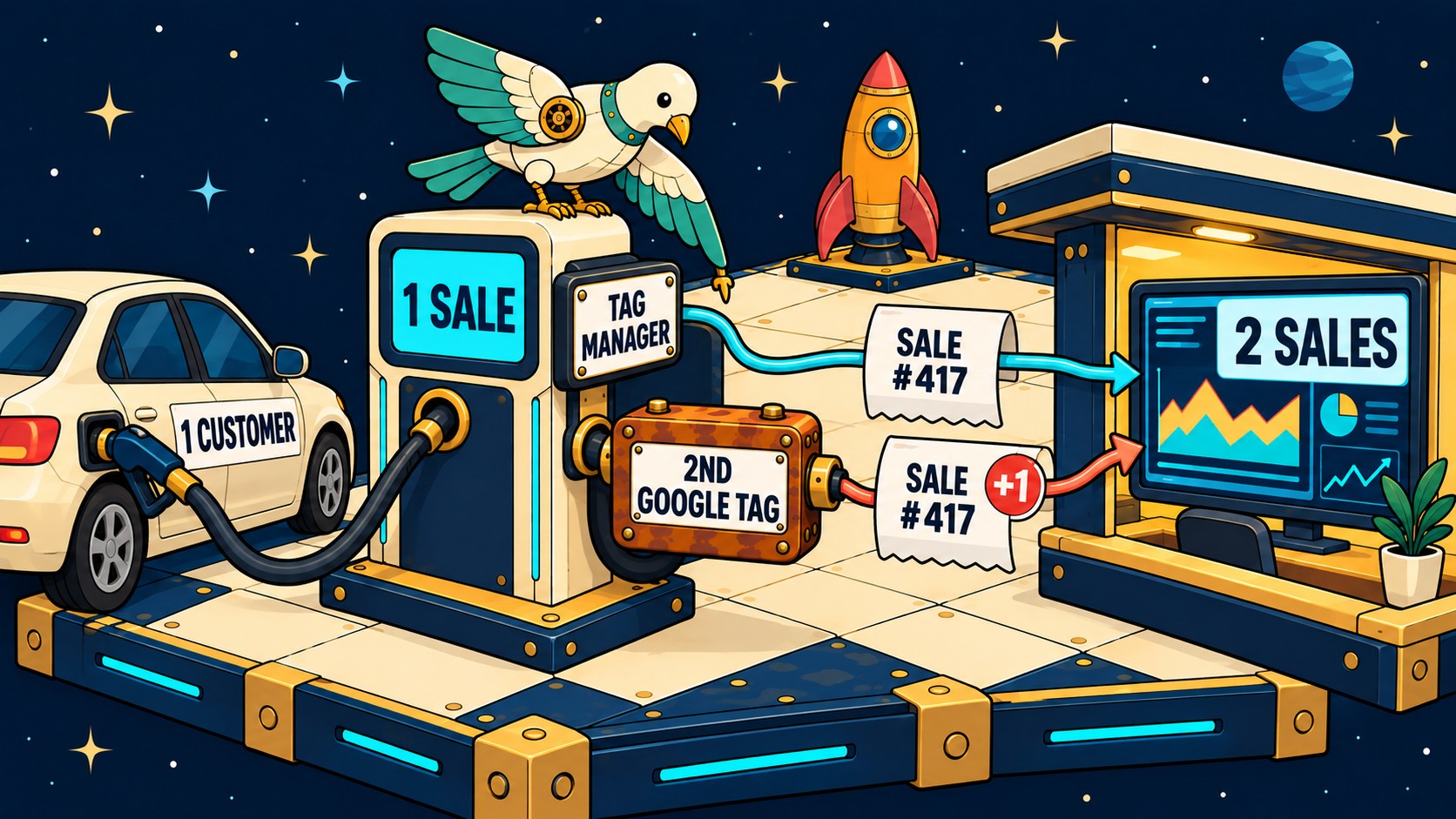
It's your gas station. The box on each pump sends your bookkeeper a receipt for every sale and never adds anything up. Years ago someone also wired a meter on the hose to the bookkeeper, and nobody took it off. So a driver fills up once, and sale #417 lands on the desk twice. Your books show two sales.
| At your station | On your website |
|---|---|
| A driver pays once | One person sends your form once |
| The pump's box sends a receipt | Tag Manager sends the lead to Analytics |
| An old meter on the hose sends another | A second Google tag in your site's code sends another |
| Your books show 2 sales | Your report shows 2 leads |
We did this to a client ourselves. On August 31 we put Tag Manager live on a wealth advisory firm's site and left their old Google tag in place, and for about fifteen minutes every page view counted twice ("two `page_view` hits, same `tid`, same session," our check said). We pulled the old tag that evening. The next check showed one.
Optimizing won't take that old tag out for you. MeasureSchool's tutorial says to remove it "to avoid double implementation of the codes" (MeasureSchool, January 2025).
We saw this with a Kansas City home-services client. Analytics counted every quick-form lead twice. It lasted about three and a half months, from late June to early October 2026. The second count came from a rule inside Analytics, not from Tag Manager. Nobody looking in Tag Manager would have seen it. Every lead was a real person, and every one was counted twice.
A form tool can cause it too. Some send their "submitted" signal twice for one form. Each of these looks normal on every screen.
Count the Google tags on your own page
Open your homepage in Chrome, right-click, and choose "View page source." Press Ctrl+A, then Ctrl+C, and paste the page into the box below. It lists each Google ID it finds. Tag Manager IDs start with GTM-. Analytics IDs start with G-, and Google Ads IDs start with AW-. It also flags two Google loaders on one page. A loader is the code that starts Google's tracking. It runs in your browser and sends nothing anywhere.
THE PUMP CHECK
Is an old counter still on your hose?
Count the counters on your page, then pump one gallon. Nothing leaves your browser.
- COUNT THE COUNTERS
- PUMP ONE GALLON
- YOUR ANSWER
In Chrome: right-click your homepage, choose View page source, press Ctrl+A, then Ctrl+C, and paste here.

Step 2 · pump one gallon: submit your own form once. How many new conversions did Google Analytics Realtime show?
THE NOTE TO SEND YOUR WEB PERSON
If you see one GTM- ID and nothing else from Google, your page has one loader. If you see a GTM- ID and a G- or AW- ID loading on its own, you may still have the old counter on the hose. Take that result into check 2 below.
The eight checks, in order
1. Sign in with the Google account that owns it. Go to tagmanager.google.com. If you can't get in, or the container lives in your agency's account, that's your first finding. Ask your web person or agency, whoever set it up, to add your own Google account as an Administrator. Then the tracking stays yours if that person leaves or you change agencies. Once you're in, go to Admin, then User Management, to see every account with access. Our post on who actually owns your website explains why it matters.
1. Find every place Google already loads. Use the box above. Look for an old Google tag pasted into your theme. Website builders sometimes add their own "connected site tag," so check for that too. The last one is Tag Manager installed twice, once in the theme and once through a plugin. A plugin is an add-on for your website. Then ask whoever set it up for a list of every tag, what it counts, and who is responsible for it.
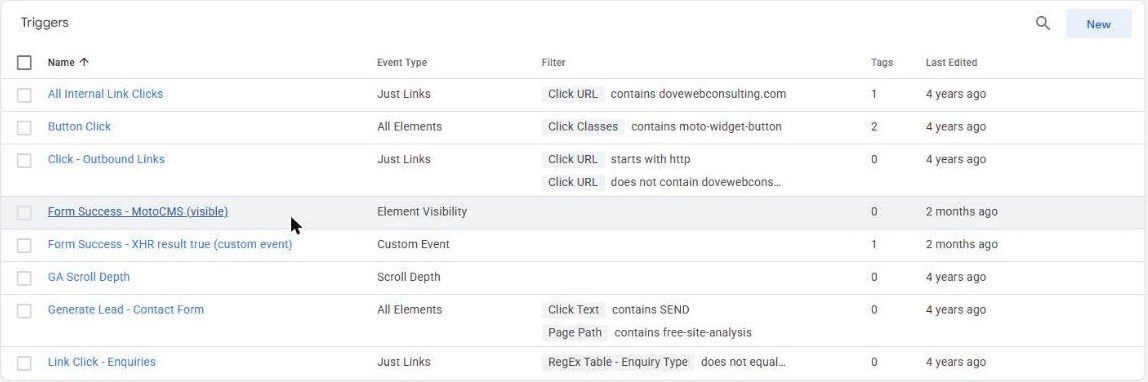
1. List the tags that fire on every event. In Tag Manager, open Triggers. A trigger is the rule that tells a tag when to fire. Look for any trigger set to "All Custom Events" there. A custom event is a signal your site sends on its own, like a form saying it was sent. Since October 8, those can fire on Google's setup message. A tag on one of those can count a lead nobody sent. Meta and TikTok tags are the usual ones to check.
1. Read the details before you click optimize. Start with the access, because it stays even if you roll back. Google says the account links are "established automatically during the optimization," and "'Read' access is granted by default" (Google, August 20, 2026). On October 17 we found a third account that could still publish changes to our own container, and we removed it. Any account you don't recognize is a question for whoever set up your tags. A rollback won't take it away: "Permissions are not versioned" (Google, Optimize your Google Tag Manager container).
We never found that banner in our own container in October 2026. The Settings page just said "Add a destination to use these settings," so there was nothing to click. If yours is the same, go on to check 5.
1. Write down your count before you change anything. Our Kansas City client's count was already doubled before October 8. No report showed it. It started with one line from me, while I was looking at their site: "there are 2 forms." Pulling the counts turned up 5 and 5 where there should have been one number. If we had blamed the update, we would have chased the wrong fix. So pull last month first. Google calls each counted lead a conversion. That number in Google Ads and Google Analytics should match the leads you really got by phone and form.
| An eyewear shop's conversions (July 2025) | What it counts | Count |
|---|---|---|
| Clicks to call | a tap on the phone number | 9 |
| Calls from ads | a real call from an ad | 1 |
| Business profile calls | calls from the Google listing | 3 |
| Menu views | someone opened the menu | 2 |
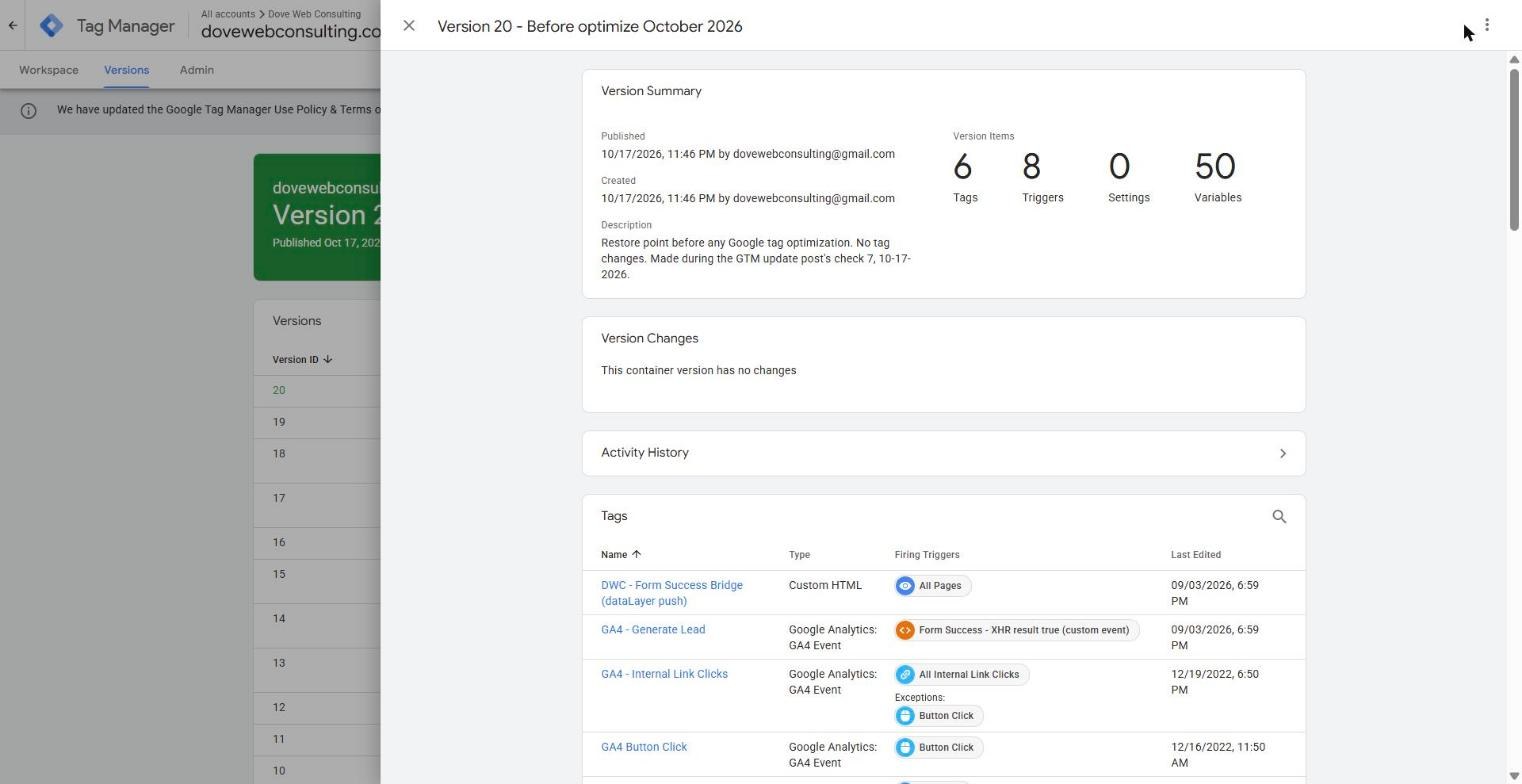
1. Make sure consent still works. Consent is where we got caught. On October 17 our Settings page looked fine, and it wasn't until I pressed Submit that Tag Manager put up the warning that 6 of our tags "have not been configured for consent" yet. If your site shows a cookie banner, that's the warning that counts. Google's consent setting, added on August 28, 2024 (Google release notes), is what holds those tags back until a visitor says yes. Don't publish past it.
1. Preview, then publish a named version. Our own website's editor has no undo at all, so I don't take Tag Manager's version history for granted. Before we went near optimize, I saved one named version to come back to. Test your form in Preview first (it opens Google Tag Assistant), and MeasureSchool shows the screens for putting an old version back (MeasureSchool shows the screens).
1. Run the one-lead test. It's the next section, and it's the check that would have caught our client's double count in a day.
If Preview won't connect, an ad blocker is often the reason. Try a private browser window.
Want someone to run these checks with you? Request a free site analysis.
How do I know my Google Tag Manager is working?
Go back to the pump. You pump exactly one gallon and look for one. Then you pump nothing and look for zero.
Do the same with your website, zero first. Open your contact form page in a normal browser window and send nothing. In Google Analytics, Reports then Realtime should show zero new conversions. Then send your own form once, with "test" in the note, and look for exactly one. When we did this on our contact page, Tag Assistant showed one "Generate Lead" for one form. If Google Ads imports your conversions, look there too.
Use a real browser. A script or an automatic form filler may skip the browser. Then the test never reaches Analytics and proves nothing. Your standard reports can take up to 48 hours to catch up, so use Realtime for the test. A tag that fired in Preview isn't the same as data that arrived. You're checking that it arrived once.
Two conversions for one form means something is counting it a second time. Our Kansas City client's quick form did that for about three and a half months. Zero for your real submit is the other way it breaks. The update may have stopped a tag, or your form may sit inside a booking tool your tags can't see. Our post on what broken conversion tracking costs covers what a month of wrong numbers does to your ad spend.
What if a check finds something?
| Step | What to do |
|---|---|
| 1 | Write down which check found it and what you saw. |
| 2 | Don't delete a tag you're not sure about. The same code may also count your real sales. |
| 3 | Send that note to whoever set up your tracking, or to us. |
| 4 | After the fix, run the one-lead test again. |
If every check passes, you're done. If check 2, 3, or 8 turns something up and you can't tell which code to pull, that's the point to get help from your web person, your agency, or us in a free site analysis. On your own, your website builder's help pages will usually show where old code sits if you search "remove Google tag."
When should I run these checks again?
Run checks 2 and 8 again after any change to your Google tags or Tag Manager. Clicking optimize counts. Run them after a new plugin or a theme update, too. Do the same when a new agency or web person gets access, or when you add a form. If none of that happened, once a month is enough. Each of those changes can add a second counter.
Google's Tag Diagnostics bar is worth a glance when you sign in. It won't count your leads for you, though, so the monthly one-lead test stays.
Each stage of your funnel has its own tag doing the counting, and one wrong count skews every stage after it. Our post on why most funnels are a form and a hope shows what happens to the whole funnel when one count is wrong.
What is the update good for?
Once the checks pass, four parts of the update are worth using. An optimized container sends data straight to Google without loading an extra script. Google says this results in "a faster website performance" (Google, August 20, 2026). Google hasn't published a number, so we won't give you one.

The new Settings page draws a map of which Google Ads and Analytics accounts receive your data. For an owner, that map is the fastest way to spot an old agency account that still gets your numbers.
Some sites only have the plain Google tag, added by a website builder or a plugin. Those sites now get Preview and version history too. A bad change can be undone.
Google is also testing a no-code way to set up a purchase conversion by clicking your order total. For now, it's a beta, which means a test version. It only covers purchase conversions in Google Ads, not lead forms (Google, August 20, 2026).
All eight checks on one page
GOOGLE TAG MANAGER UPDATE
You sent one lead. How many did your report count?
Your form sent one lead, and the pump screen says one. Somewhere on the hose, an old counter may still be counting it again.
TWO GOOGLE CHANGES
Google changed two things without asking anyone
APR 10, 2025
Containers with Google Ads tags start loading a Google tag first, on their own.
OCT 8, 2026
Old Google setup code now shows up as an event, and tags set to fire on every custom event can fire on it.
NOBODY CLICKED
TAKE THE HOSE APART
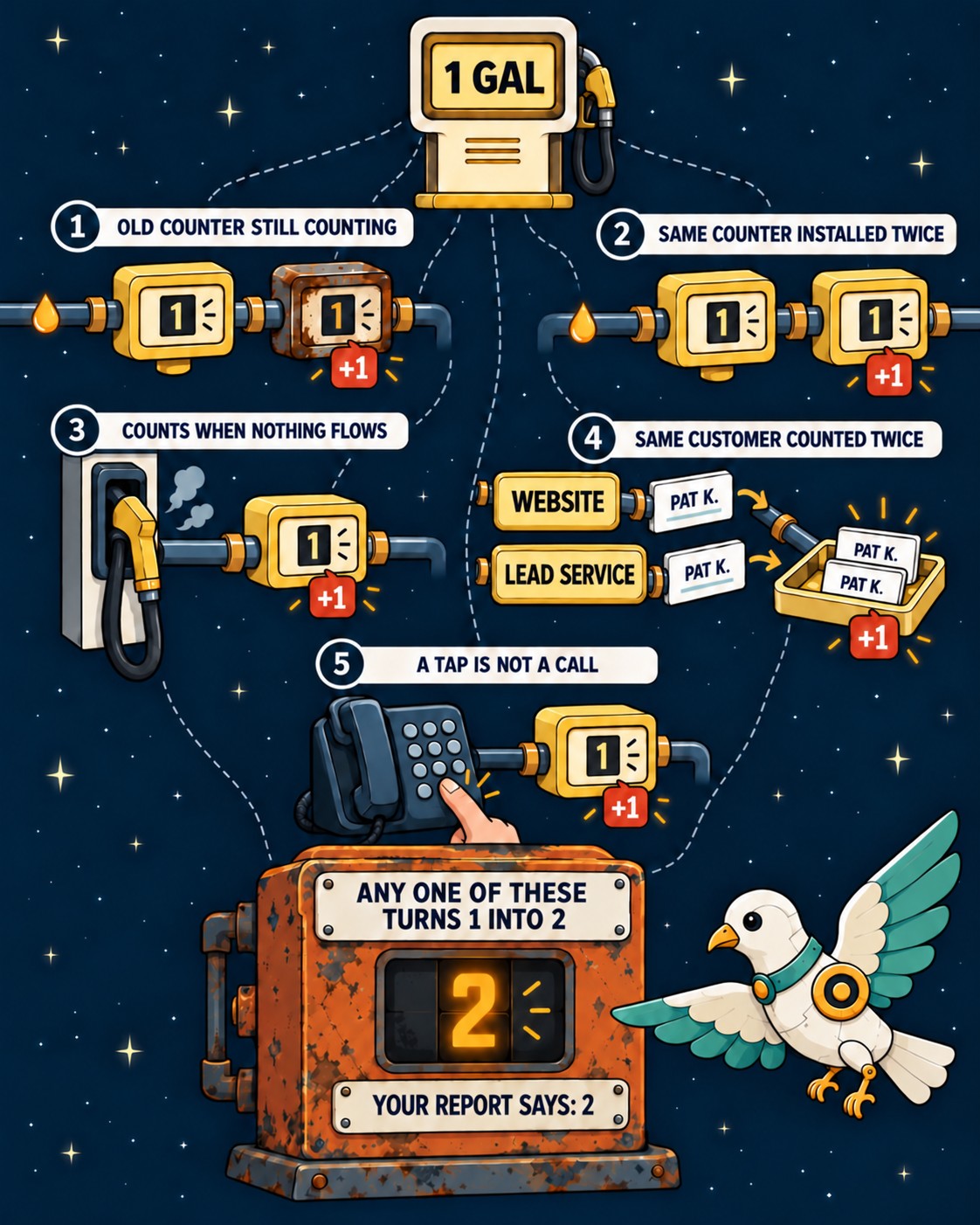
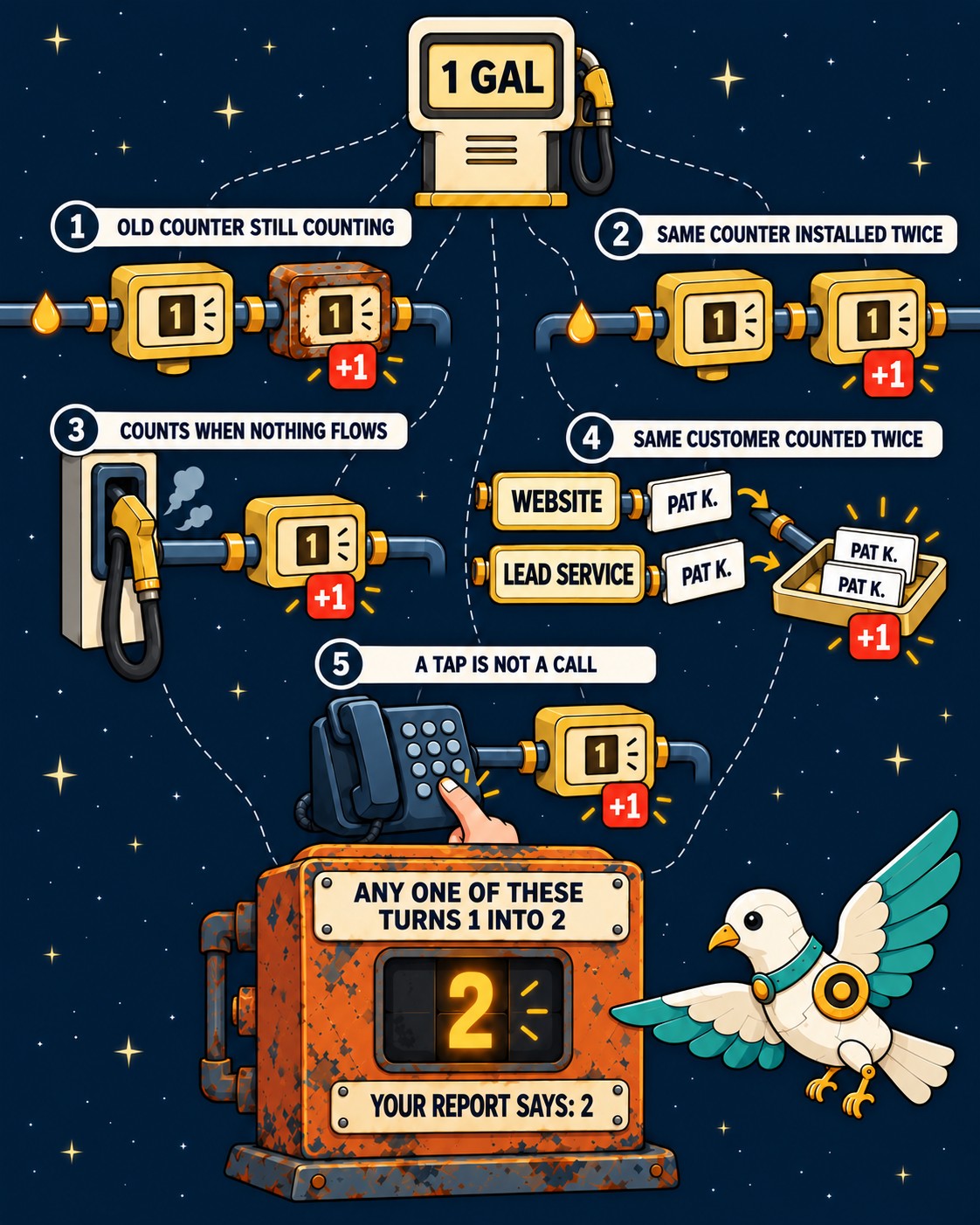
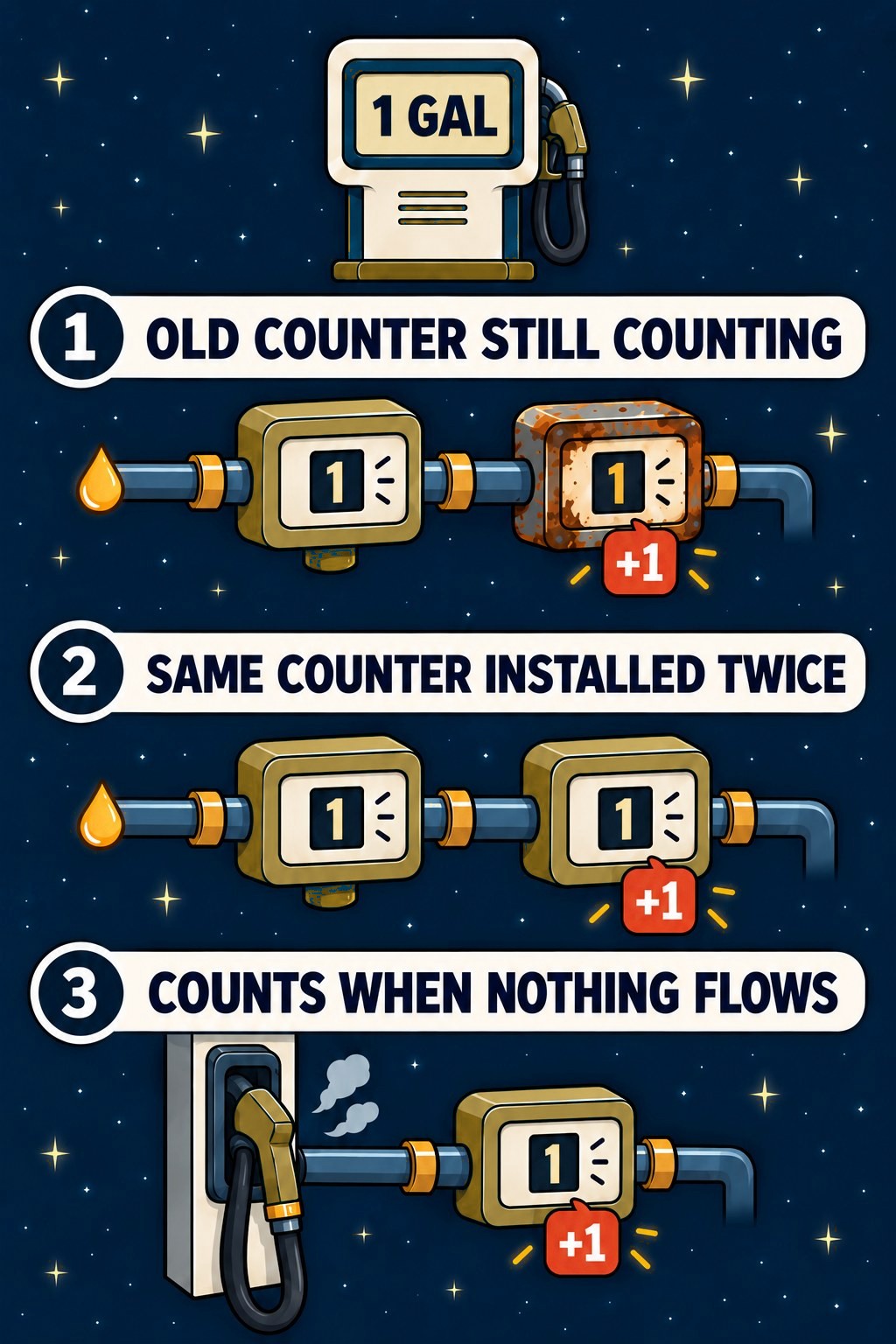
Five places a second counter hides
- 1
Old counter still countingAn old Google code left in your theme
Check 2
- 2
Same counter installed twiceTag Manager in the theme and again in a plugin
Check 2
- 3
Counts when nothing flowsA trigger set to "All Custom Events"
Check 3
- 4
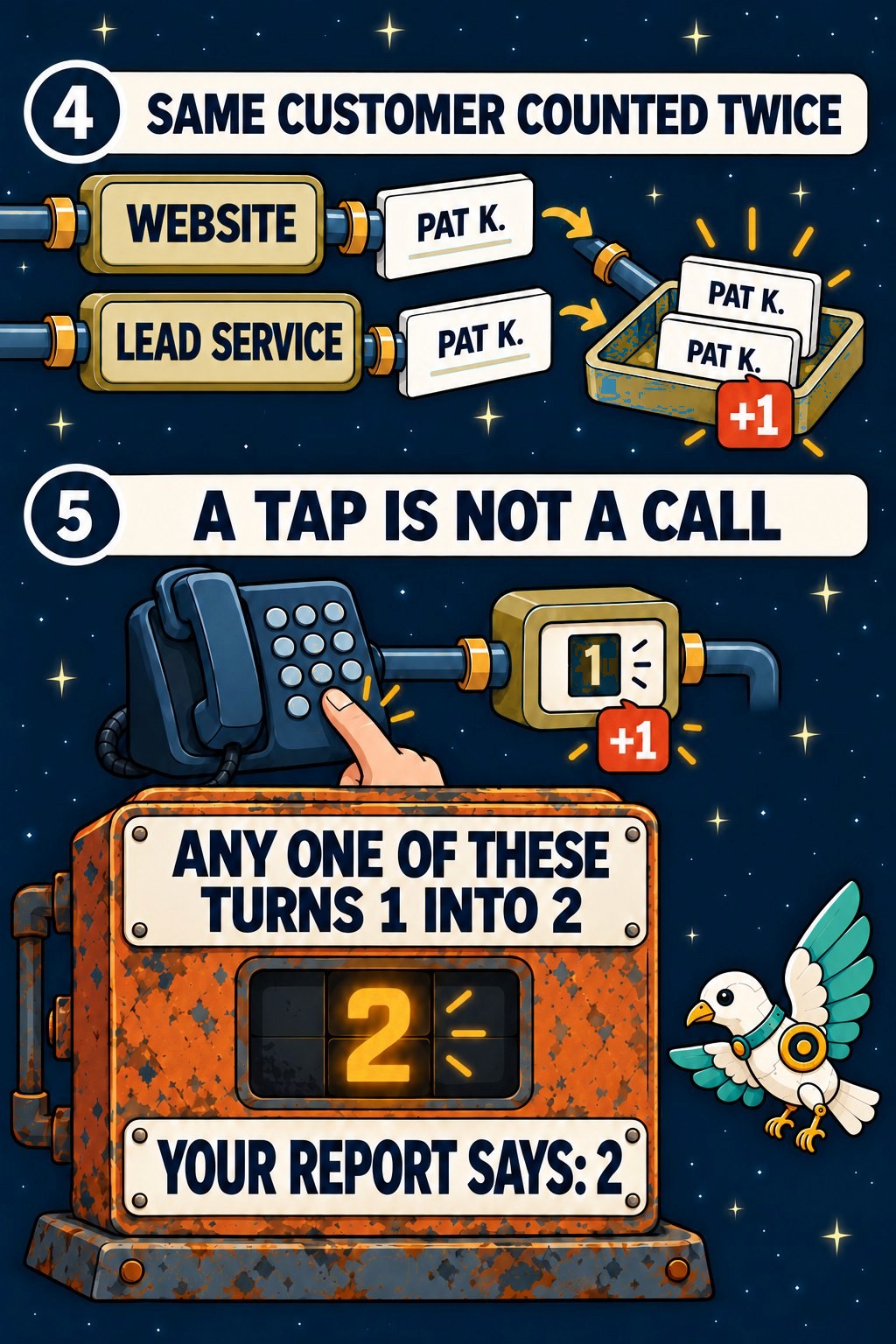
Same customer counted twiceOne person in your form and in a lead service
Check 5
- 5
A tap is not a call"Clicks to call" counted as real calls
Check 5
THE ONE-GALLON TEST
Pump none, see none. Pump one, see one.
0
Open the form, submit nothingRealtime should show 0 conversions
1
Submit your own form onceRealtime should show exactly 1
See 2? You found the old counter. See 0 for your real submit? A tag stopped, or your form sits where tags can't see.
Source: Google Tag Manager release notes, April 10, 2025 and October 8, 2026.
Frequently asked questions
Is Google Tag Manager still a thing?
Yes, and Google is putting more into it. The 2026 updates move more Google tag settings into Tag Manager. They also let containers send data straight to Google.
Is there a Google Tag Manager update to download?
You don't need to download anything. Nothing gets installed on your computer or your website. One change switched on by itself on October 8, 2026. The rest shows up as an "optimize" option in your Tag Manager account. Nothing changes until someone clicks it.
Do I have to click optimize?
Not right away. Google says "no changes will be made automatically" for the optimize step, so it waits for you. Do check 4 first, because the access links it creates stay even after a rollback.
How do I know my Google Tag Manager is working?
Send one test form with your own name and the word "test," and look for exactly one conversion in Google Analytics Realtime. For one client, we sent a test lead named "ChainTest - Clean & Seal" through their whole chain to prove it worked. Preview mode shows a tag fired, but only Realtime shows the lead arrived.
What's the difference between Google tag and Google Tag Manager?
The Google tag is one tracking code for Google Analytics and Google Ads. Tag Manager is the container that can run the Google tag and every other tag on your site. If you're setting one up for the first time, start with our Search Console and Analytics setup checklist.
Make sure every lead counts once

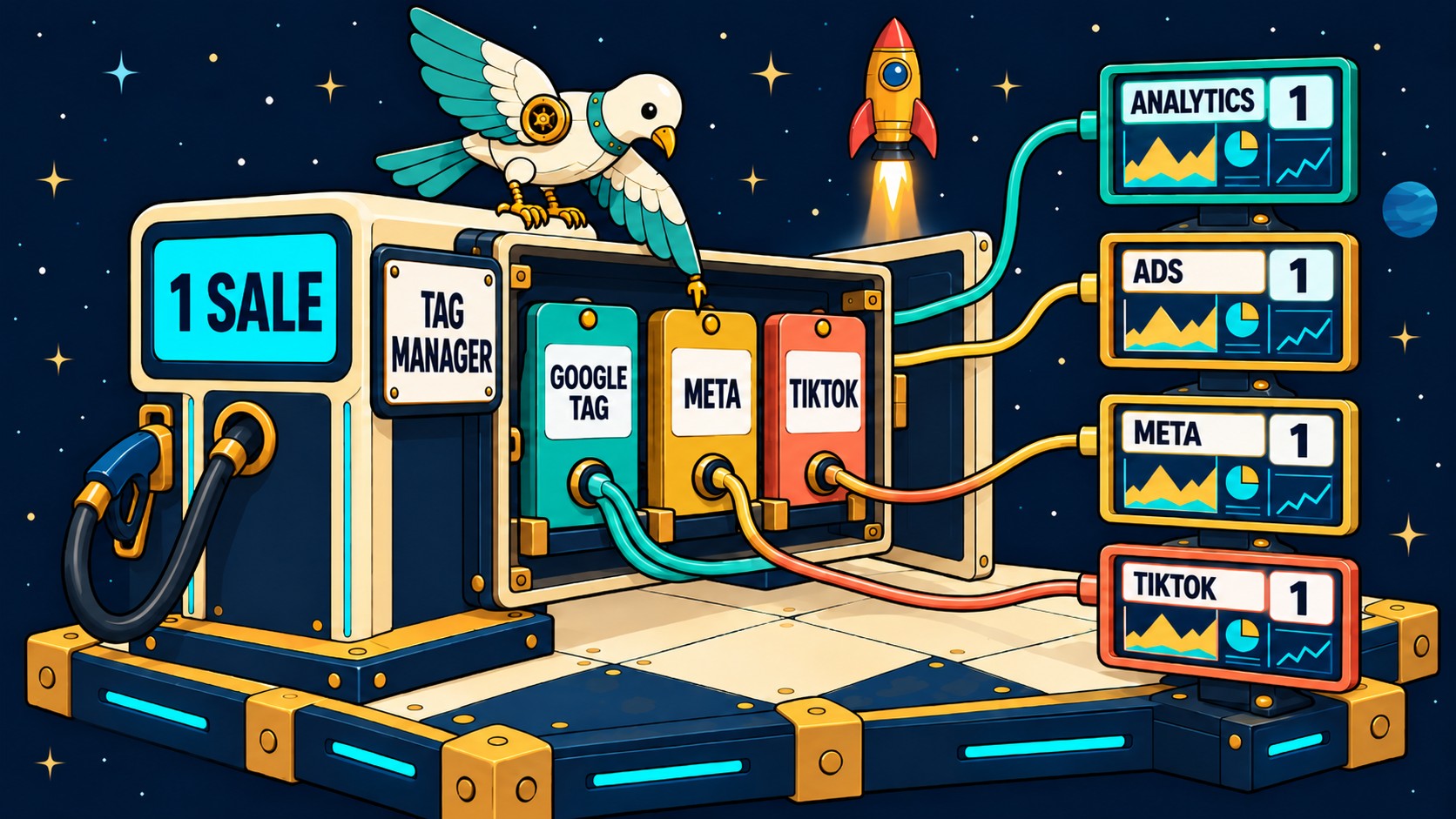
At the pump, the screen was right, and the books were wrong. Your website can look fine on every screen while one lead counts as two, or as none. Twenty minutes and one test form will tell you which. Start with the paste box at the top, then work down the eight checks. If check 8 shows exactly one conversion for one form, your numbers are telling you the truth.
Want a second set of eyes? We'll run the one-lead test on your site and tell you what your tracking records. Request a free site analysis.